
Capture it.
Make your point.
Shnapp is a simple screenshot app for Windows 11. Press a shortcut, add just enough context, then copy or save.
An early preview for Windows 11. Built for x64 and ARM64.
A shnapp starts with a shortcut.
Shnapp waits quietly in the tray. Choose what to capture and the editor appears right after.
Pick an open window. Shnapp gives the finished capture a soft shadow.
Capture the display beneath your pointer in one move.
Drag a rectangle with live pixel measurements. Hold Shift for a square.
The free-form shortcut currently uses a rectangular selection.
Just enough to explain what matters.
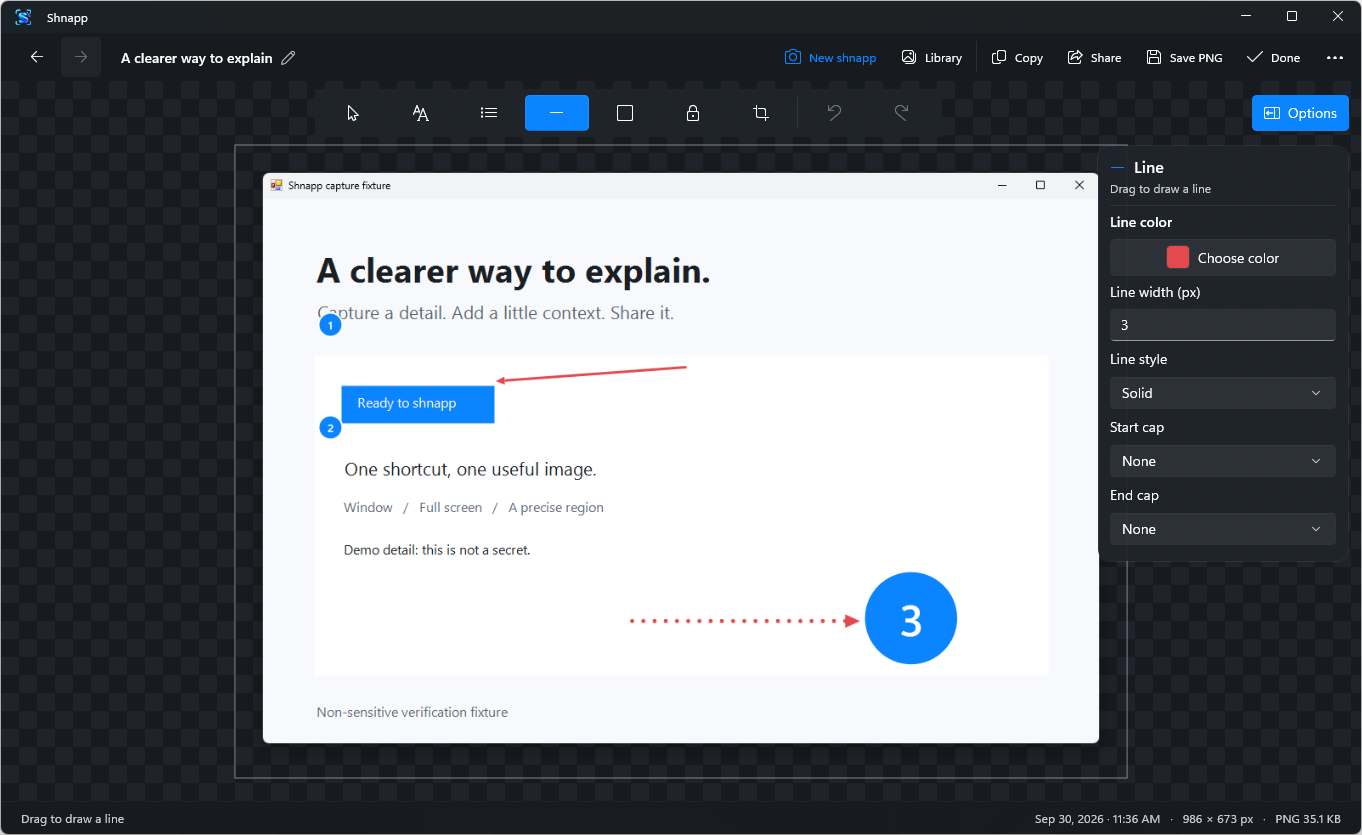
Place a mark and adjust it right away in the side panel. Click once for text that grows in width or across lines, or drag a fixed box where you can align or justify text, set line height, and clip overflow or end it with an ellipsis. Tune kerning, letter spacing, and case for either style. Paste words or pictures as movable layers; the transparent canvas grows and trims around them. Copy the finished PNG with that transparency intact, or send it through the Windows share sheet. Scroll to zoom, hold Space to pan, and use the arrow keys to nudge a mark into place.
Say it in a sentence
Write on the image or fit words inside a text box. Add number, letter, or Roman step dots, restart a sequence, and keep the last dot size.
Point to the detail
Draw solid, dashed, or dotted lines with your choice of caps at either end. Add outlined or fill-only shapes.
Choose how to hide a detail
Use opaque Cover for sensitive details. Blur and Pixelate offer visual obscuring when that is enough.
Finish and move on
Move a crop into place, choose exact pixels or a familiar ratio, then copy or save a PNG.
Actual app screenshot with sample content
Your shnapps, right where you left them.
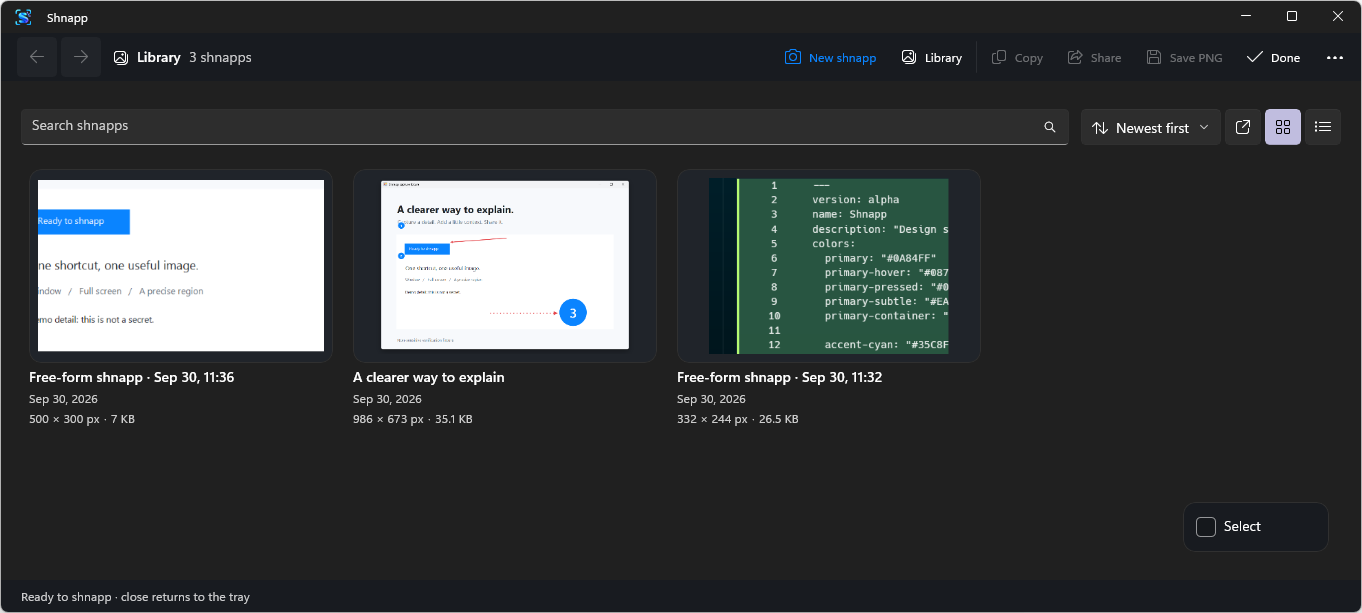
Every capture lands in your local library, ready to search and reopen. Choose a compact list or one of four thumbnail sizes. See each shnapp’s date, dimensions, and PNG size; sort by any of those or by name. Share a saved shnapp from its menu. In the editor, move to the left edge for a quick gallery of recent shnapps and drag one onto your canvas. Turn on launch at sign-in if you want Shnapp waiting in the tray whenever Windows starts.
See where your shnapps live
Local is the default.
Your library and preferences live in your Windows user folder. Core capture and editing need no account or internet connection. Copied and exported PNGs include your chosen Cover, Blur, or Pixelate effect. Editable originals stay in your local library. Choose opaque Cover for private information; blur and pixelation may leave details recognizable.
Still taking shape.
Shnapp is an early preview. Planned additions include captions, polygon shapes, output resizing, true free-form capture, and optional AI help for writing. They are not in the current app.
Take a shnapp.
Make it clear.
The useful screenshot app for everyday Windows moments.